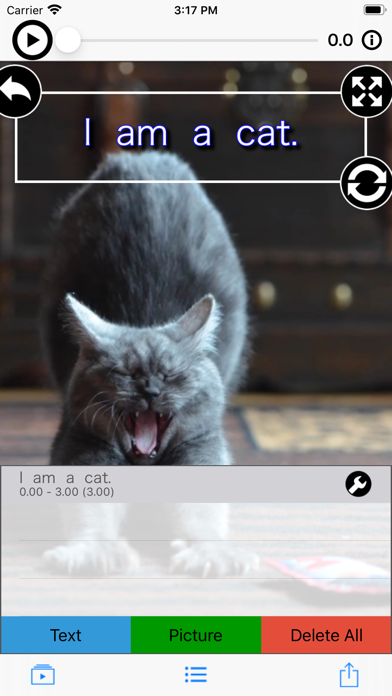
【My subtitle movie】 is a movie editing application which makes it easy to add subtitles and images to your videos.
Let's watch the "tutorial video" which can be played from the top screen of the application in order to know the basic operation method.
Please be sure to select "yes" because attention will be given to the permission of access to each device the first time it starts up. If you choose "No" by mistake
[Settings application]> [Privacy]> [Photo, microphone, camera]> [My subtitle video]
Please set the setting of "ON".
Operation explanation
*** Select a base movie.
Select the base movie from the camera button on the bottom left of the top screen.
My Album: Select a movie from My Album.
Camera: Activate the camera and shoot a movie.
*** Select the subtitle/picture to add.
Display the list from the red button at the bottom center of the top screen.
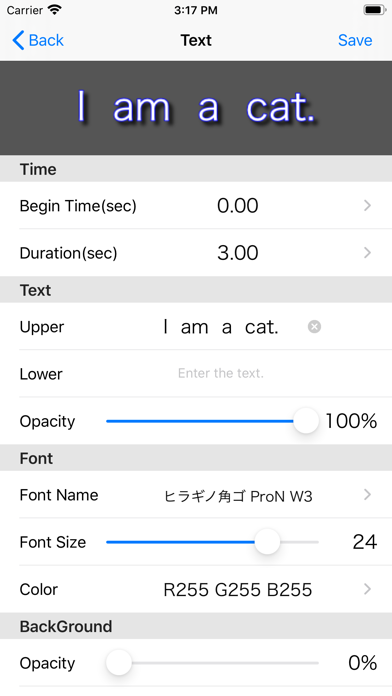
Press the character or picture button to open the edit screen.
· Start position (sec)
Specify the position where subtitles are added to the base moving picture.
Display period (seconds)
Specify the display period from the start position.
· Upper letter, lower letter (only when adding subtitles)
Enter the character to be added.
- Picture (only when adding pictures)
Select an picture to add.
· In addition, specify various attributes.
If it is OK with the contents set on the edit screen, press the save button, if you want to cancel, press the cancel button.
*** Re-edit subtitles and pictures added.
From the list on the top screen, press the edit button on the far right to open the edit screen.
*** Move, rotate, enlarge, or reduce added subtitle/picture.
From the list on the top screen, select the line you want to edit.
· When moving
Select subtitle/picture with one finger and slide to any place.
· When rotating
Roll subtitle/picture with two fingers (rotate up and down).
Or slide the lower right grip.
・ When scaling
Pinch in/out subtitles with two fingers (spread in and out).
Or slide the upper right grip.
・ When resetting
Double-tap the screen.
Or tap the upper left grip.
*** Delete added subtitle/picture.
Swipe to the left of the list on the top screen, then press the delete button.
To delete all lines at once, press the delete button.
*** Play the edited movie.
Slide the slider at the top of the top screen to the left and press the play button.
*** Save the edited video to My Album.
Press the arrow button at the bottom right of the top screen and select "Save Video".