NOTE: If you find a bug, please click on the support link and send me a message with the details. This is a one man operation and I can't test on many devices...
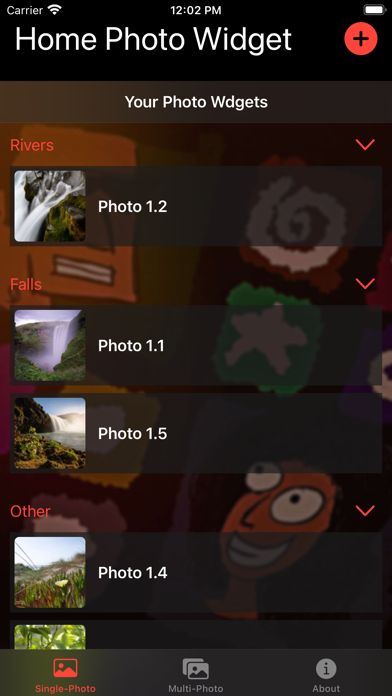
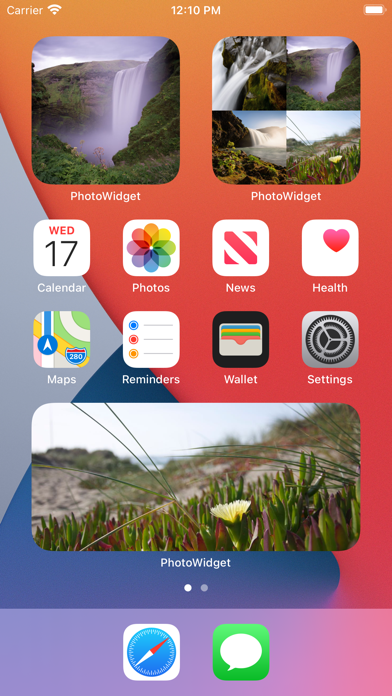
Add the photos you want to your home screen as widgets:
1. Import the picture or pictures you want to show on the home screen as a widget to the app. You can add it/them to a folder (new or existing)
2. Create a widget, edit it and choose the photo you imported.
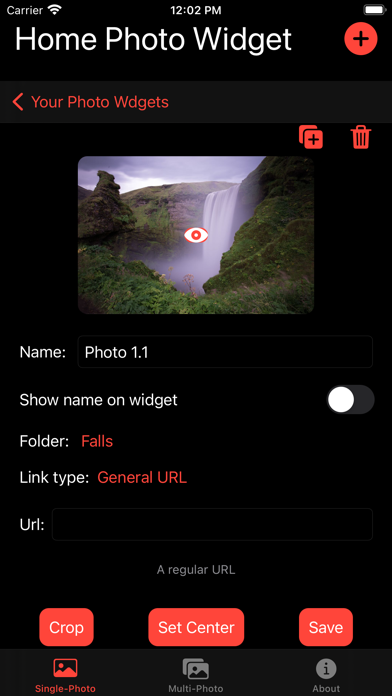
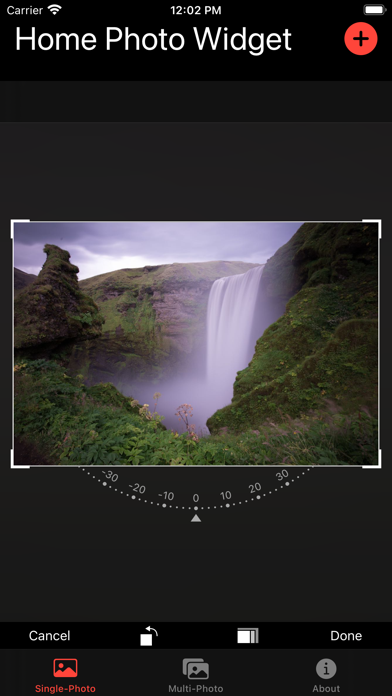
3. Select the photo in the app to edit its name and to choose wether you want the widget to show it or not (and its color). If the picture is wide or tall, be sure to set its center to make sure the important part is displayed on any sized widget.
You can import multiple phots and have multiple widgets with different pictures in all three sizes!
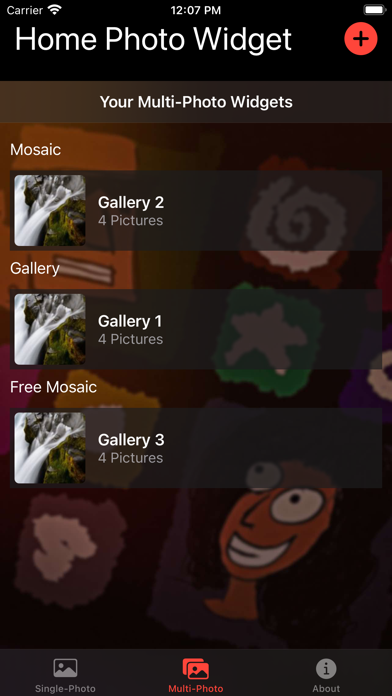
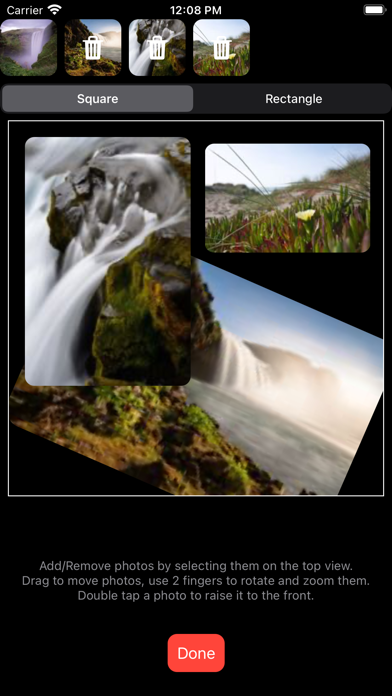
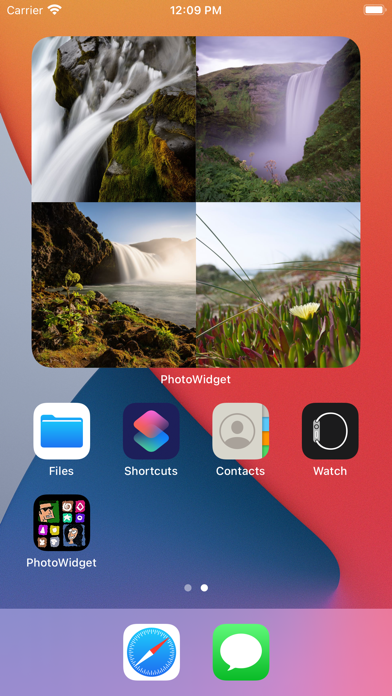
Unlock the app to also creat multi photo widgets that display each picture for your chosen amount of time or at specific times in the order you want. Also make mosaics from your pictures:
1. Choose the multi-widget tab
2. Press the + button to add a multi photo widget
3. Choose some pictures from the ones you already imported into the app
4. select the multi photo widget in the app to change its name, edit its order and select the amount of time for each photo
5. Create the widget as before and select if by its name when editing it.
6. Choose the type: Mosaic and Free Mosaic show multiple pictures in the widget. Be sure to edit the composition if you choose Free Mosaic to place the pictures, scale and rotate them to your liking.
You can also add a custom link to your photos so once pressed it will be opened. I've included an easy way to link to your own shortcuts by name.