Are you struggling with managing various passwords?
This application is a completely free password management application that allows you to manage many passwords at once with a simple operation, and you can quickly see it when you want to see it.
You can save the following information as a batch
· Name
· ID
· Password
· Notes
· Category
[Introduction of other functions]
■ Category
・ Accounts can be categorized.
・ Categories can be created by yourself. Initially, "Website", "Email", "Game", "SNS", "Work", and "Other" are registered.
・ You can narrow down the list display contents by category.
■ Search
You can narrow down the display contents of the list with search characters.
(It can be used in combination with category narrowing down)
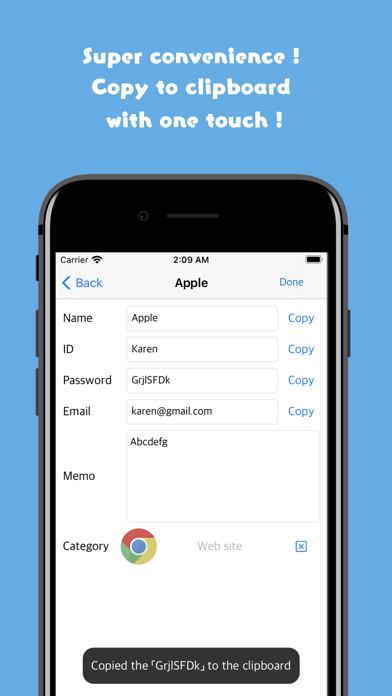
■ Copy
You can copy saved passwords etc. to the clipboard with one touch by pressing the copy button
■ Backup
・ Data in the app can be converted to text format
・ The converted text is stored in the clipboard and in the app
・ Tap the app icon once a week to save the automatic backup in the app when you launch the app
・ The maximum number of storage items is 50. If more backups are taken, the oldest backup will be deleted
■ Restore
Overview:
The text created by the backup function can be loaded into the application. There are the following two methods for restoration.
[Method 1: From backup in the app]
Select the button to create a backup or a backup created with automatic backup.
[Method: From backup text]
It is possible to restore by directly specifying the text obtained with the "Create backup button". Please use it at the time of terminal migration. (The method of data transfer at the time of device transfer is described below)
※Caution
Also, the restore function reads the specified data after deleting all the current data.
Please make a backup after making a backup just in case.
■ Passcode lock
You can choose to enter the password when launching the application
[How to use the restore function when transferring to a terminal]
① Obtain the backup character string with the backup function on the old terminal.
② Install this application on the new terminal
③ Paste the backup character string obtained in ① into the text box on the setting screen and press the restore button. (You can delete the original characters.)
④ All category images are initialized, so please reconfigure them in the category edit screen.
!!! Caution !!! (In order to prevent loss of data accident, please be sure to read below and use it after understanding)
1, please take a backup a little
This application does not perform any external communication for security reasons (excluding advertisements) Data exists only in the customer's terminal.
Even if data is erased by accidental deletion etc. for any reason, we can not do any support, so we ask you to use the backup a little and use it on your own risk.
2, Please be careful not to forget the master password
Please be careful not to forget the 4-digit number master password that can be set on the setting screen.
※ If you forget you can not log in to this application.